
How Can We Help?
Search for answers or browse our knowledge base.
-
Retro C
-
-
- Articles coming soon
-
- Replace the Retro C Computer
- Configure the Touchscreen Computer to Power On Automatically
- Replace the microSD Card in a Display Computer
- Transfer Files to the Retro C
- Replace the USB Drive in the Touchscreen Computer
- Configure a Newer Computer to Power On After an Outage
- Configure an Older Computer to Power On After an Outage
- Touchscreen Pointer Is Flipped or Mirrored
- Replace the Retro C Touchscreen USB Drive
- Retro C Touchscreen Is Black or Will Not Start
-
-
-
- Recover and Recalibrate a Stuck Angle or Centerline
- Replacing an Angle Encoder
- Angle Movement Overruns the Commanded Position
- Angle (Arch) Movement Overview
- Angle Chains – Proper Chain Tension
- Diagnose Unknown Blade Motor Noises
- Pivot Point Calibration Check
- Troubleshoot Power or Wiring for Angle Motors and VFDs
- Dirty Saw Head Slide: Symptoms and Cleaning
-
- Recover and Recalibrate a Stuck Angle or Centerline
- Calibrate Retro C Centerlines 1–5
- Advanced Centerline Recovery When Calibration Is Far Out
- Centerline (Vertical) Movement Overview
- Replace a Centerline Encoder
- Replacing a Centerline Gearbox
- Check the Centerline Maximum and Minimum Height Settings
- Tighten the Centerline Slides
- Adjust Centerline Chain Tension
-
-
- Third Scrap Drive Wiring and GS23 Programming
- Adjust or Tighten the Scrap Conveyor Belt
- Configure the Scrap or Incline Conveyor to Always Run
- Replacing the Scrap Motor
- Scrap Belt: Support Roller Replacement
- Scrap Belt Sweeper Adjustment and Inspection
- Scrap Belt Tracking and Alignment
- Retro C Scrap System Overview and Daily Checks
-
-
- VFD General Reference and Troubleshooting
- Drive (VFD) Disconnected Warning: Diagnosis and Recovery
- GS1 and GS2 VFD Reference
- GS20 VFD Reference
- GS20 ACM/DCM Common Wiring
- GS20 Standard VFD Wiring Reference
- GS3 VFD Reference
- Program a Replacement CFW Drive
- GS VFD Overvoltage Warning: Diagnosis and Safe Response
- VFD Replacement Options
- Yaskawa V1000 Blade Programming
- Program an AutomationDirect GS23 VFD
- Common VFD Wiring to VC1s
-
- Replace and Commission a VC1
- Replace a VC1: Mechanical and Electrical Procedure
- Add a Delay Diode Jumper to a VC1
- Configure the Software After Replacing a VC1
- Temporary 24 V UPS Bypass: Qualified-Technician Procedure
- VC1 Standard Jumper Removal
- 24 AWG-to-22 AWG VC1/VFD Cable Upgrade Wiring Reference
- VC1 Status Lights and Startup Diagnosis
-
- Encoder Wiring Diagram
- Stationary and Carriage Panel Cable Entry Layout
- Troubleshoot Power or Wiring for Angle Motors and VFDs
- Replace the Wires and Hoses in the Energy Chain
- Temporary 24 V UPS Bypass: Qualified-Technician Procedure
- 24 AWG-to-22 AWG VC1/VFD Cable Upgrade Wiring Reference
- Common VFD Wiring to VC1s
- Retro C Encoder Counts Move in the Wrong Direction
-
-
- Common Retro C Issues and Solutions
- Countdown Timer Warning with All VC1s and VFDs Disconnected
- Scrap Belt or Scrap Incline VFD Disconnected: Troubleshooting
- Recover and Recalibrate a Stuck Angle or Centerline
- Touchscreen Pointer Is Flipped or Mirrored
- Encoder Unplugged Error: Diagnosis and Recovery
- Stationary or Carriage Horizontals Will Not Move
- Error Messages and Warnings: Quick Index
- Retro C Will Not Start or Enable After Power-Up
- Retro C Calibration Will Not Hold or Changes After Restart
- Recover Retro C After an Unexpected Power Loss
-
-
-
Linear Pickline
-
- Foot Pedal Controls and Troubleshooting
- Unexpected Conveyor Movement Caused by a Foot Pedal Contact
- Front Conveyor Sensor: Location and Diagnosis
- Kindle Fire 8 Configuration
- Linear PickLine – Conveyor Sensor Integration
- Linear PickLine – Installation Requirements
- Linear PickLine – Installing the Brain Box
- SmartConveyor Air Stop: Operation and Troubleshooting
-
-
Plant One Projection
-
SmartConveyor
-
- Cable Pull Emergency-Stop System
- SmartConveyor V40 Encoder: Route, Replacement, and Verification
- Foot Pedal Controls and Troubleshooting
- Unexpected Conveyor Movement Caused by a Foot Pedal Contact
- Front Conveyor Sensor: Location and Diagnosis
- SmartConveyor Dual-Pedal Controls
- SmartConveyor Air Stop: Operation and Troubleshooting
-
-
Sticker Printer
-
NexPlate
< All Topics
Print
Program an AutomationDirect GS23 VFD
Updated
Use this procedure to assign the drive number and communication settings required for an AutomationDirect GS23 variable-frequency drive (VFD) to communicate with the saw control system.
Before You Begin
- Confirm that the replacement drive is an AutomationDirect GS23.
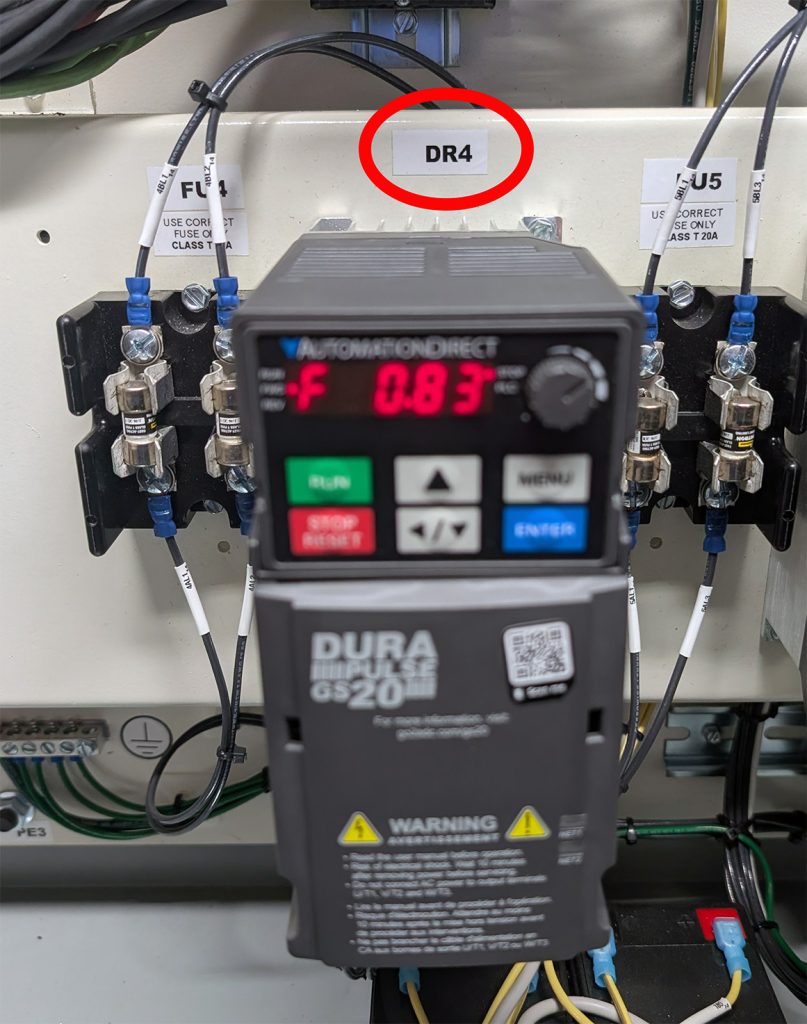
- Locate the drive-identification label, such as DR1, DR2, or DR18. The number on this label is the drive number you will enter.
- Record the original parameter values before changing them.
Important: If you are replacing an older GS1 or GS3 with a GS23, the saw software configuration must also be updated. Contact Enventek Technical Support before operating the machine.
Program the Drive
- Press Enter once. The display should show 00.
- Use the up and down arrows to select 09, then press Enter. The display should show 09.00.
- Press Enter. When the current value appears, use the arrow buttons to enter the number shown on the drive-identification label. For example, enter 4 for a drive labeled DR4. Press Enter to save the value.
- Navigate to parameter 09.01. Change its value from 9.6 to 19.2, then press Enter.
- Navigate to parameter 09.04. Change its value from 15 to 14, then press Enter.
What Correct Looks Like
- Return to parameters 09.00, 09.01, and 09.04 and confirm that the new values were retained.
- Restart the saw software. The system will upload the remaining drive-specific settings to the VFD during startup.
- Confirm that the VFD connects without a disconnected-drive warning and that the assigned drive responds correctly.
If the values do not remain saved or the drive does not reconnect, stop troubleshooting and contact Enventek Technical Support with the drive label, parameter values, and warning shown on the screen.
Table of Contents