
Search for answers or browse our knowledge base.
-
Retro C
-
-
- Articles coming soon
-
- Replace the Retro C Computer
- Configure the Touchscreen Computer to Power On Automatically
- Replace the microSD Card in a Display Computer
- Transfer Files to the Retro C
- Replace the USB Drive in the Touchscreen Computer
- Configure a Newer Computer to Power On After an Outage
- Configure an Older Computer to Power On After an Outage
- Touchscreen Pointer Is Flipped or Mirrored
- Replace the Retro C Touchscreen USB Drive
- Retro C Touchscreen Is Black or Will Not Start
-
-
-
- Recover and Recalibrate a Stuck Angle or Centerline
- Replacing an Angle Encoder
- Angle Movement Overruns the Commanded Position
- Angle (Arch) Movement Overview
- Angle Chains – Proper Chain Tension
- Diagnose Unknown Blade Motor Noises
- Pivot Point Calibration Check
- Troubleshoot Power or Wiring for Angle Motors and VFDs
- Dirty Saw Head Slide: Symptoms and Cleaning
-
- Recover and Recalibrate a Stuck Angle or Centerline
- Calibrate Retro C Centerlines 1–5
- Advanced Centerline Recovery When Calibration Is Far Out
- Centerline (Vertical) Movement Overview
- Replace a Centerline Encoder
- Replacing a Centerline Gearbox
- Check the Centerline Maximum and Minimum Height Settings
- Tighten the Centerline Slides
- Adjust Centerline Chain Tension
-
-
- Third Scrap Drive Wiring and GS23 Programming
- Adjust or Tighten the Scrap Conveyor Belt
- Configure the Scrap or Incline Conveyor to Always Run
- Replacing the Scrap Motor
- Scrap Belt: Support Roller Replacement
- Scrap Belt Sweeper Adjustment and Inspection
- Scrap Belt Tracking and Alignment
- Retro C Scrap System Overview and Daily Checks
-
-
- VFD General Reference and Troubleshooting
- Drive (VFD) Disconnected Warning: Diagnosis and Recovery
- GS1 and GS2 VFD Reference
- GS20 VFD Reference
- GS20 ACM/DCM Common Wiring
- GS20 Standard VFD Wiring Reference
- GS3 VFD Reference
- Program a Replacement CFW Drive
- GS VFD Overvoltage Warning: Diagnosis and Safe Response
- VFD Replacement Options
- Yaskawa V1000 Blade Programming
- Program an AutomationDirect GS23 VFD
- Common VFD Wiring to VC1s
-
- Replace and Commission a VC1
- Replace a VC1: Mechanical and Electrical Procedure
- Add a Delay Diode Jumper to a VC1
- Configure the Software After Replacing a VC1
- Temporary 24 V UPS Bypass: Qualified-Technician Procedure
- VC1 Standard Jumper Removal
- 24 AWG-to-22 AWG VC1/VFD Cable Upgrade Wiring Reference
- VC1 Status Lights and Startup Diagnosis
-
- Encoder Wiring Diagram
- Stationary and Carriage Panel Cable Entry Layout
- Troubleshoot Power or Wiring for Angle Motors and VFDs
- Replace the Wires and Hoses in the Energy Chain
- Temporary 24 V UPS Bypass: Qualified-Technician Procedure
- 24 AWG-to-22 AWG VC1/VFD Cable Upgrade Wiring Reference
- Common VFD Wiring to VC1s
- Retro C Encoder Counts Move in the Wrong Direction
-
-
- Common Retro C Issues and Solutions
- Countdown Timer Warning with All VC1s and VFDs Disconnected
- Scrap Belt or Scrap Incline VFD Disconnected: Troubleshooting
- Recover and Recalibrate a Stuck Angle or Centerline
- Touchscreen Pointer Is Flipped or Mirrored
- Encoder Unplugged Error: Diagnosis and Recovery
- Stationary or Carriage Horizontals Will Not Move
- Error Messages and Warnings: Quick Index
- Retro C Will Not Start or Enable After Power-Up
- Retro C Calibration Will Not Hold or Changes After Restart
- Recover Retro C After an Unexpected Power Loss
-
-
-
Linear Pickline
-
- Foot Pedal Controls and Troubleshooting
- Unexpected Conveyor Movement Caused by a Foot Pedal Contact
- Front Conveyor Sensor: Location and Diagnosis
- Kindle Fire 8 Configuration
- Linear PickLine – Conveyor Sensor Integration
- Linear PickLine – Installation Requirements
- Linear PickLine – Installing the Brain Box
- SmartConveyor Air Stop: Operation and Troubleshooting
-
-
Plant One Projection
-
SmartConveyor
-
- Cable Pull Emergency-Stop System
- SmartConveyor V40 Encoder: Route, Replacement, and Verification
- Foot Pedal Controls and Troubleshooting
- Unexpected Conveyor Movement Caused by a Foot Pedal Contact
- Front Conveyor Sensor: Location and Diagnosis
- SmartConveyor Dual-Pedal Controls
- SmartConveyor Air Stop: Operation and Troubleshooting
-
-
Sticker Printer
-
NexPlate
Replace the Retro C Computer
Before You Begin
Record the current settings and any message shown on the screen before making changes. Close active jobs normally, and change only the settings identified in this article.
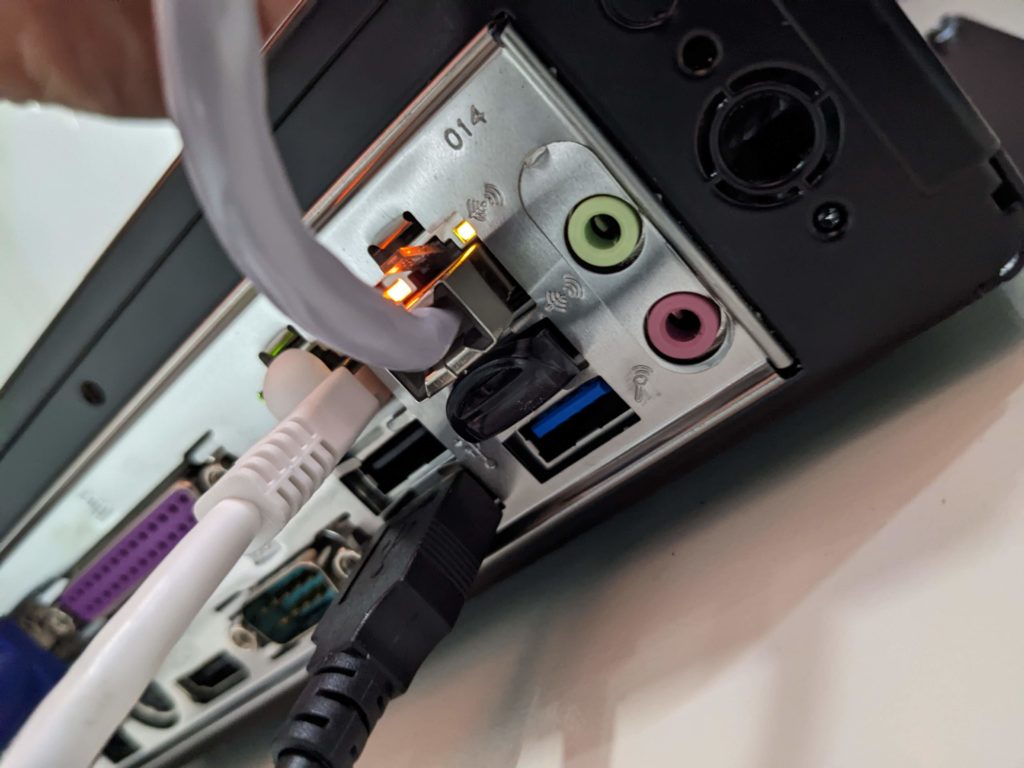
Remove all of the cables, take a picture if needed so you can remember where they go. Don’t forget to remove the USB thumb drive.
Remove the 4 silver screws on the left and right sides of the computer. You will need a 1/4” socket to remove,
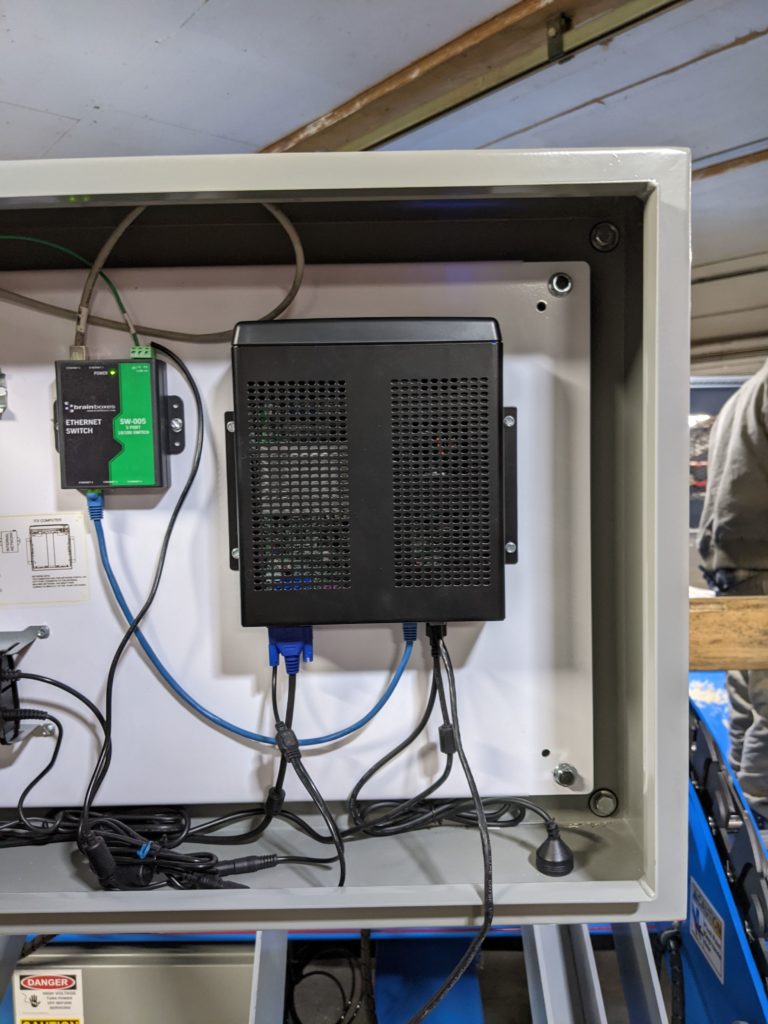
Remove the old computer and set aside.
Reinstall the new computer using the 4 screws.
Plugin all the cables as well as the USB thumb drive.
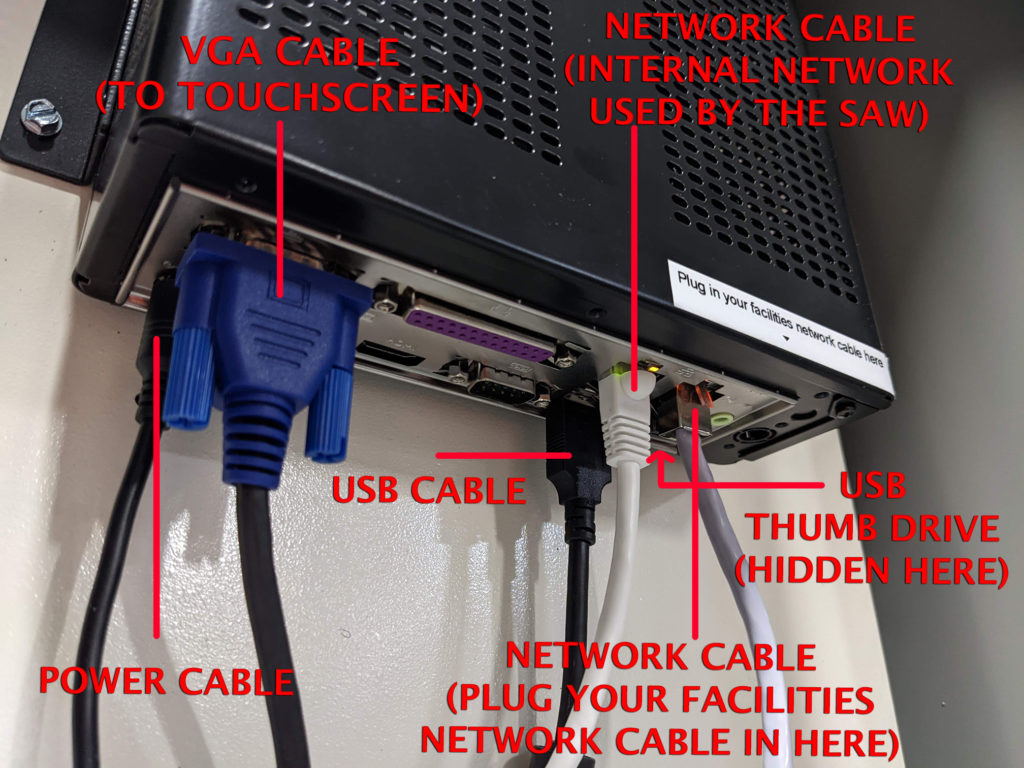
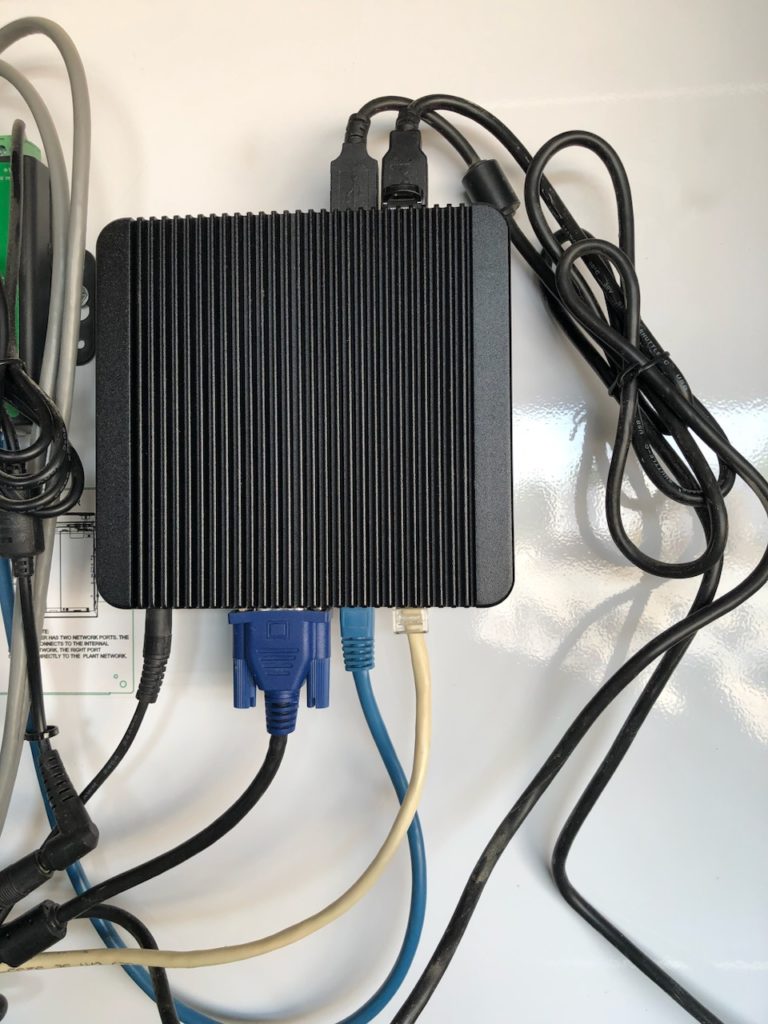
The ethernet cable on the left goes to the ethernet switch next to the computer. Make sure that the ethernet from the office is in the port to the right as the photo below.
Press the power button on the top to power it on.
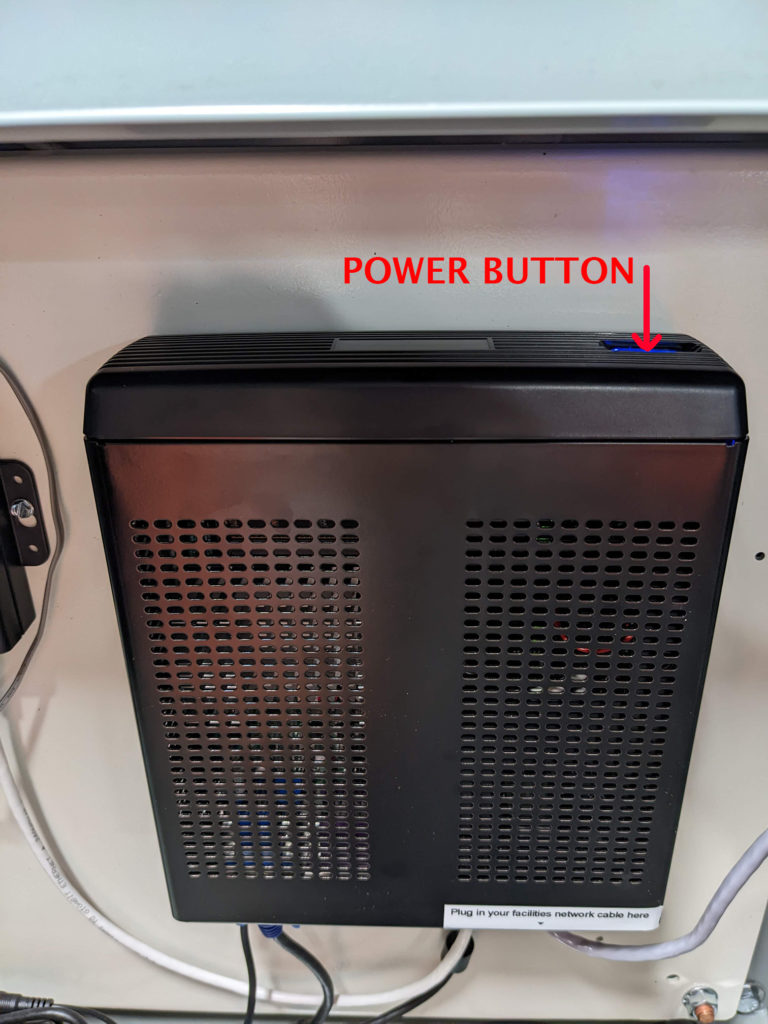
Reminder: Make sure you install the USB drive from the previous machine or if Enventek shipped one with it, the old usb drive will have your previous settings and software preinstalled.
Congratulations you have completed the computer replacement.
Below is the new computer design it is very similar to the older model however it will require a few holes to be drilled in the back panel to mount it.
Confirm the Result
Restart the affected computer or software when the procedure calls for it. Confirm that the changed setting is retained, the expected screen or connection returns, and normal machine communication is restored.
If the issue remains, record the exact on-screen message, affected component, indicator-light state, and the last change made. Provide those details to Enventek Technical Support; do not repeatedly recalibrate or replace parts without identifying the cause.